How to use Citymapper
Getting started using the app is simple. Follow this guide to find out how to download the app onto your phone, and how to plan your journeys.
Step one
How to get started
Download the free Citymapper app via the links to the Apple app store or Google Play Store.
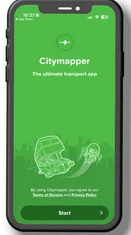
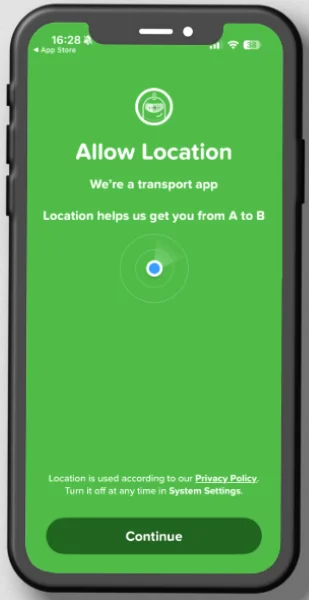
Once downloaded, open up the app and click 'Start'. The app will request access to location services – this enables Citymapper to pinpoint your location, find nearby stops and give step by step directions.


Step two
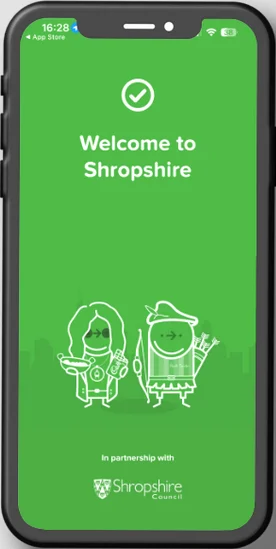
With location services turned on, Citymapper will automatically set your 'city' to Shropshire. If you choose not to turn on location services, you can set your 'city' manually in the app settings menu. Select 'The Midlands' as your 'city' as this now includes Shropshire.
Next, click OK to enable notifications. This allows Citymapper's Smart Notifications to alert you about any disruptions to services and even when it's time to get off the bus.
Step three
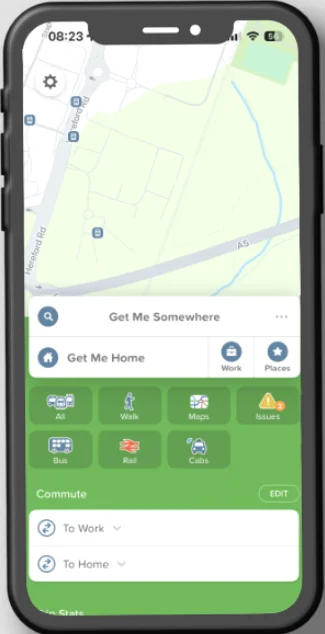
Now every time you open your app the homescreen will appear with a map showing your current location
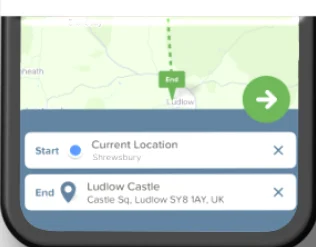
(if location services switched on). Click 'Get me somewhere' and just type in where you want to go. You can also set your destination on the map by dragging the map and placing the green 'End' flag at your desired destination.
Click the green arrow button if you're ready to see your journey options.
You can choose to start your journey from a different location by typing into the 'Start' box or dragging the map - as before.
Step four
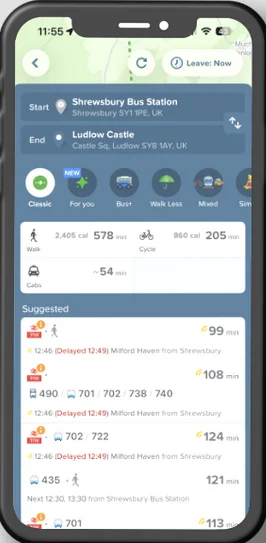
Citymapper will suggest suitable ways to get to your destination. This may be walking, bus, Park and Ride,
Connect on-Demand, cycling or by train.
Choose your preferred method with a tap.
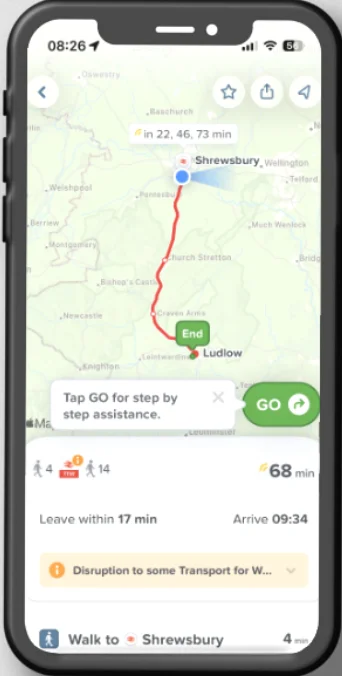
Your journey will now appear on the map - if you are happy with your choice tap the green “Go” button at the bottom right corner of the map.
Step five
Your journey will now begin! The app will now switch to step-by-step navigation mode, using GPS to update your location as you travel. (You can scroll through upcoming journey steps at any time.)
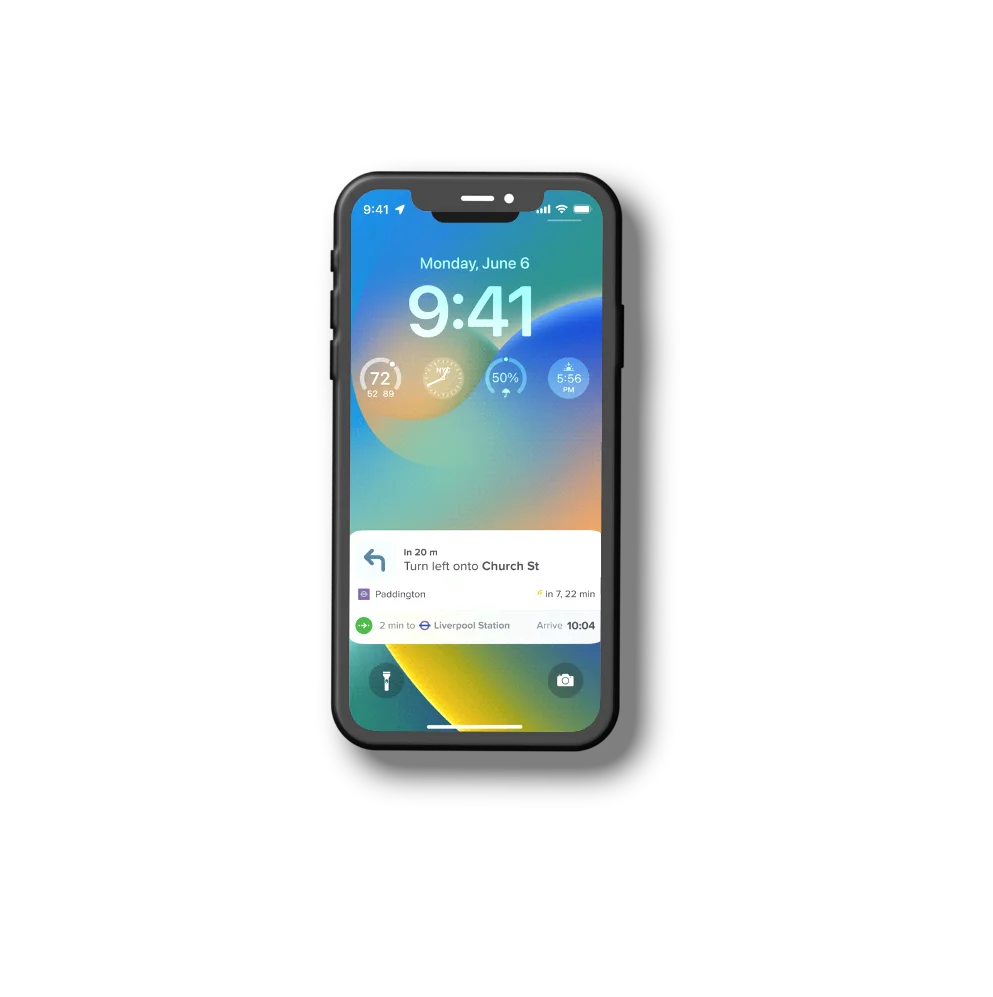
Citymapper uses 'Go Lockscreen Navigation' which sits on your lockscreen for the duration of the trip. It figures out which step you're at and tells you what you need to know without having to open the app, such as the next departure time or when to get off the bus.
More information
Save locations that you regularly travel to, such as your home, work, school address etc, so that you can plan your next trip even faster and even easier.
Link your calendar to Citymapper and quickly plan journeys to all your appointments.
Find out how at the Citymapper website..
Still unsure about using the app? Don't worry - you can still plan your journey easily online via the online journey planner.
If you have any questions about Citymapper, you can ask our Public Transport Team by sending an email to buses@shropshire.gov.uk